
좋은 기회로 RAG 스터디에 합류하게 되었습니다.
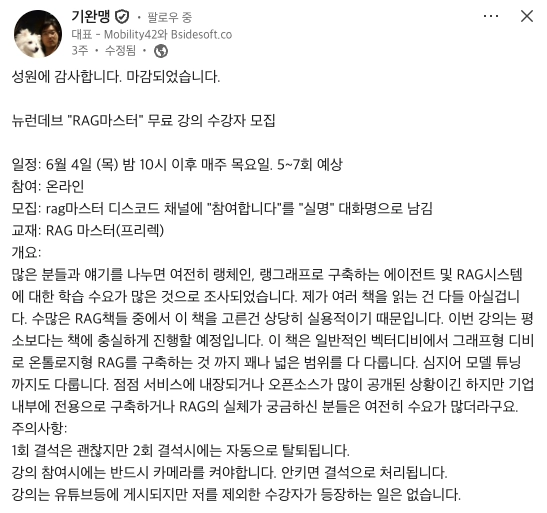
에이전트 시대에 맞추어진 엔지니어가 되기 위해 책을 기반으로 학습 중에 있습니다.
이번 글에서는, RAG 마스터 책에 기반한 학습 환경 구성을 위해 셋팅 진행 과정 등을 남겨보겠습니다.
환경 소개
실습 환경 정보입니다.

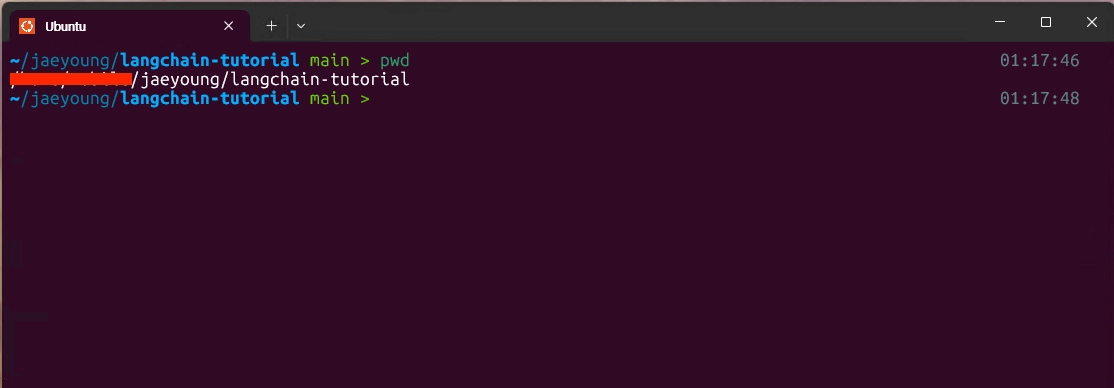
i9-9900K * 2 GPU를 사용하는 환경입니다.
또한 WSL를 활용하여, 작업중에 있습니다.
책에서는 구글 코랩과 Open AI API Key를 사용하여 학습을 진행하도록 안내하고 있습니다.
스터디에서는 더 쉽게 접근할 수 있는 환경을 갖추어서 진행중에 있습니다.
Unsloth
Unsloth Docs | Unsloth Documentation
Unsloth is an open-source framework for running and training LLMs.
unsloth.ai
Unsloth은,
적은 GPU 메모리로 LLM을 빠르고 쉽게 Fine-tuning(추가 학습)하기 위한 오픈소스 프레임워크입니다.
스터디에서는 공통된 실습 환경을 구성하기 위해 (Jupyter Lab를 쉽게 사용하기 위해) unsloth_studio를 활용합니다.
https://unsloth.ai/docs/new/studio
Introducing Unsloth Studio | Unsloth Documentation
Run and train AI models locally with Unsloth Studio.
unsloth.ai
docker를 활용하여 쉽게 띄울 수 있으므로, 아래 정보로 실행하여 구동 중에 있습니다.
services:
  unsloth:
    image: unsloth/unsloth:latest
    container_name: unsloth_studio

    restart: unless-stopped

    ports:
      - "10020:8888"   # Jupyter Lab / Unsloth Studio
      - "10030:8000"   # API / Inference

    volumes:
      - ./unsloth/workspace:/workspace
      - ./unsloth/hf_cache:/root/.cache/huggingface

    environment:
      TZ: Asia/Seoul
      JUPYTER_PASSWORD: thisispassword
      CUDA_VISIBLE_DEVICES: "0,1"

    ipc: host
    tty: true
    stdin_open: true

    gpus: all
설정 포인트는 다음과 같습니다.
- Unsloth Studio에서 Jupyer Lab을 위한 Port를 설정해야함
- GPU를 두 개 쓰는 환경에서는 다음과 같이, CUDA_VISIBLE_DEVICES: "0,1"를 설정해야함
- environment에 JUPYTER_PASSWORD를 설정해야함
docker 환경은 준비되어 있다고 가정하고, 다음과 같이 실행하였습니다.
docker compose up -d
이때, 다음과 같은 에러를 마주했습니다.
docker logs -f unsloth_studio

# PermissionError:
# '/workspace/studio'
내부 workspace 디렉터리 권한 문제가 원인으므로, 다음과 같이 조치하였습니다.
docker compose down

sudo chown -R 1001:102 ./unsloth/workspace # 현재 사용자 정보를 파악 후 올바른 id로 교체
sudo chmod -R 775 ./unsloth/workspace

docker compose up -d
위와 같은 조치를 통해 컨테이너 내부 unsloth 사용자가 workspace에 파일 생성 가능하도록 변경하였습니다.
최종적으로 GPU가 확인되는지 아래 코드로 점검을 진행하였습니다.
import subprocess

print("===== nvidia-smi =====")

try:
    result = subprocess.run(
        [
            "nvidia-smi",
            "--query-gpu=index,name,memory.used,memory.total,utilization.gpu",
            "--format=csv,noheader",
        ],
        capture_output=True,
        text=True,
        check=True,
    )

    print(result.stdout)

except Exception as e:
    print("nvidia-smi 실패:", e)

print("\n===== PyTorch CUDA =====")

import torch

print("torch          :", torch.__version__)
print("CUDA build     :", torch.version.cuda)
print("is_available   :", torch.cuda.is_available())
print("device count   :", torch.cuda.device_count())

assert torch.cuda.is_available(), "❌ CUDA를 사용할 수 없습니다."

for i in range(torch.cuda.device_count()):
    p = torch.cuda.get_device_properties(i)

    print(
        f"  [{i}] {p.name} | "
        f"{p.total_memory / 1024**3:.1f} GB | "
        f"cc {p.major}.{p.minor}"
    )

print("\n===== 실연산 테스트 =====")

x = torch.randn(4096, 4096, device="cuda")
y = x @ x

torch.cuda.synchronize()

print(
    "✅ GPU 연산 성공:",
    y.shape,
    "| 메모리:",
    f"{torch.cuda.memory_allocated()/1024**2:.0f} MB",
)

del x
del y

torch.cuda.empty_cache()

print("✅ 테스트 완료")
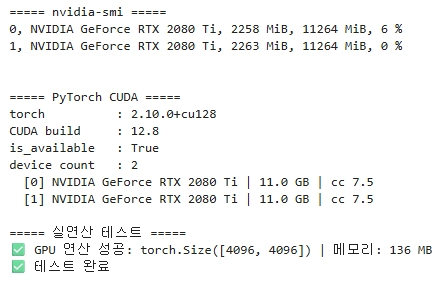
정상적으로 동작하는 것 까지 확인하였습니다.
이후 LM-Studio에 활용할 모델도 준비하였습니다.
LM-Studio는 이미 운용중인 상태였기에, 설치 과정은 생략하겠습니다.

unsloth에서 양자화 하여 제공하고 있는 모델인 gemma-4-e2b-it 를 다운로드 하였고(수업에서 공통으로 사용하는 모델),
여러 모델과 병행하여 테스트하며 스터디 참여 중에 있습니다.
진행 사항은 지속적으로 GitHub에 기록 중이며, 다음 링크를 통해 확인하실 수 있습니다.
https://github.com/Yu-Jaeyoung/langchain-tutorial/tree/main/rag-master
langchain-tutorial/rag-master at main · Yu-Jaeyoung/langchain-tutorial
Contribute to Yu-Jaeyoung/langchain-tutorial development by creating an account on GitHub.
github.com
학습 간에 궁금한 점이나, 문제가 발생하여 해결한 부분까지 지속적으로 기록하도록 하겠습니다.